User Guide
-
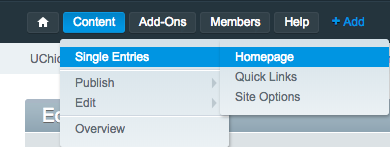
To edit the Homepage, either select it from the main content tree, or select Content > Single Entries > Homepage from the top bar.
-
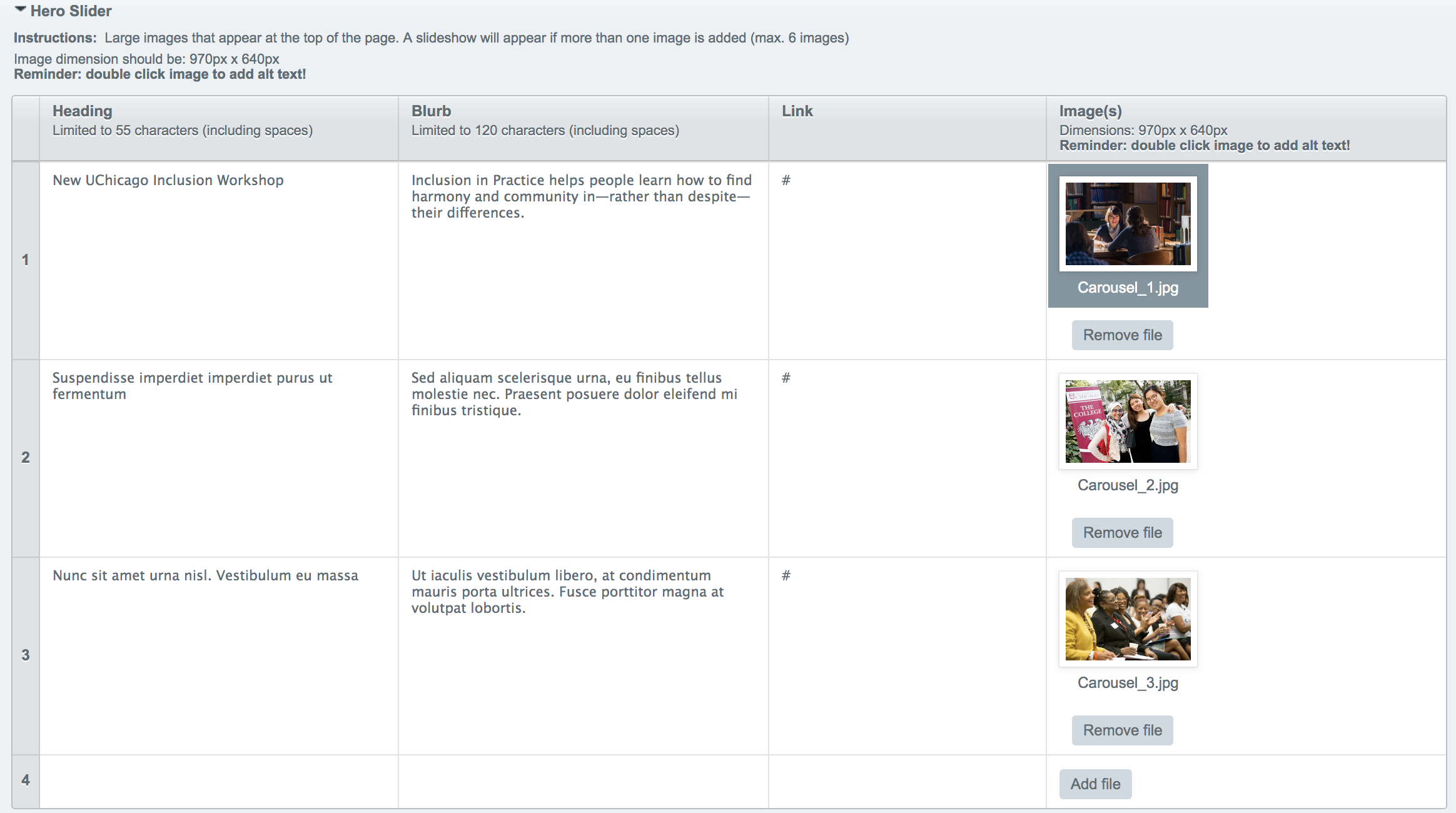
The slideshow of images that appears at the top of the Homepage is edited in the "Hero Slider" field.
The Heading is the large text that will appear beside the image. The blurb is smaller text that appears below the Heading. You can insert a link to either a page on the site or an external page. Images can be uploaded by clicking add file. The dimensions for the Hero Slider images are 970px x 640px.
You can insert up to six slider entries.
-
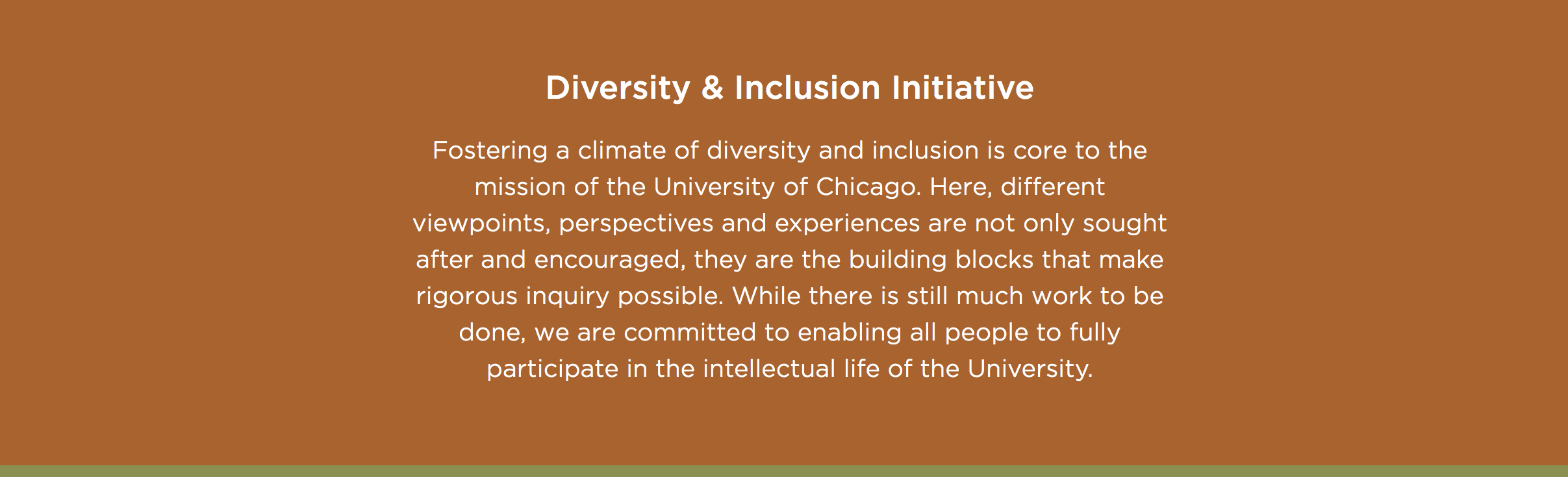
Next is the Intro section. This is a text block that includes an Intro Headline and and Intro Blurb. The text can be bolded, italicized, or linked. The background color that appears on the page as shown in the image will not be editable.
-
A general note to bear in mind when editing content: rows with empty required fields cannot be deleted. For example, if you add a header image to a page, then decide that you do not want an image, you should delete the row without removing the image. If you do not do this, the site will not allow you to save your changes. If you run into this problem, simpy replace the image (which you do not wish to include), and then delete the row.
-
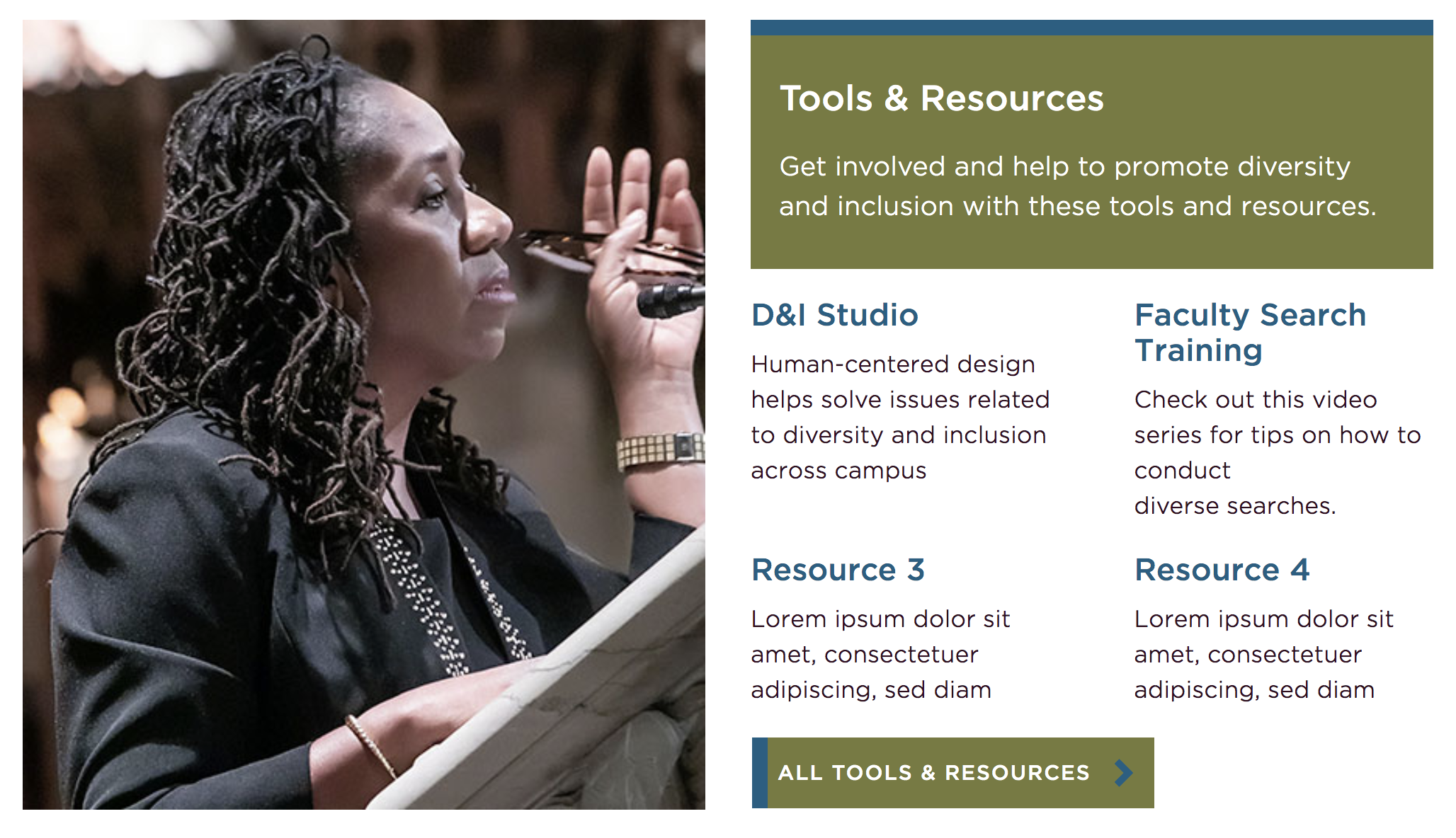
The next section is for Tools & Resources. First you can choose a headline. In the image, the Headline and Intro blurb entries are what displays in the green box. The image will be the larger image on the left-hand side of the tools and resource entries.
-
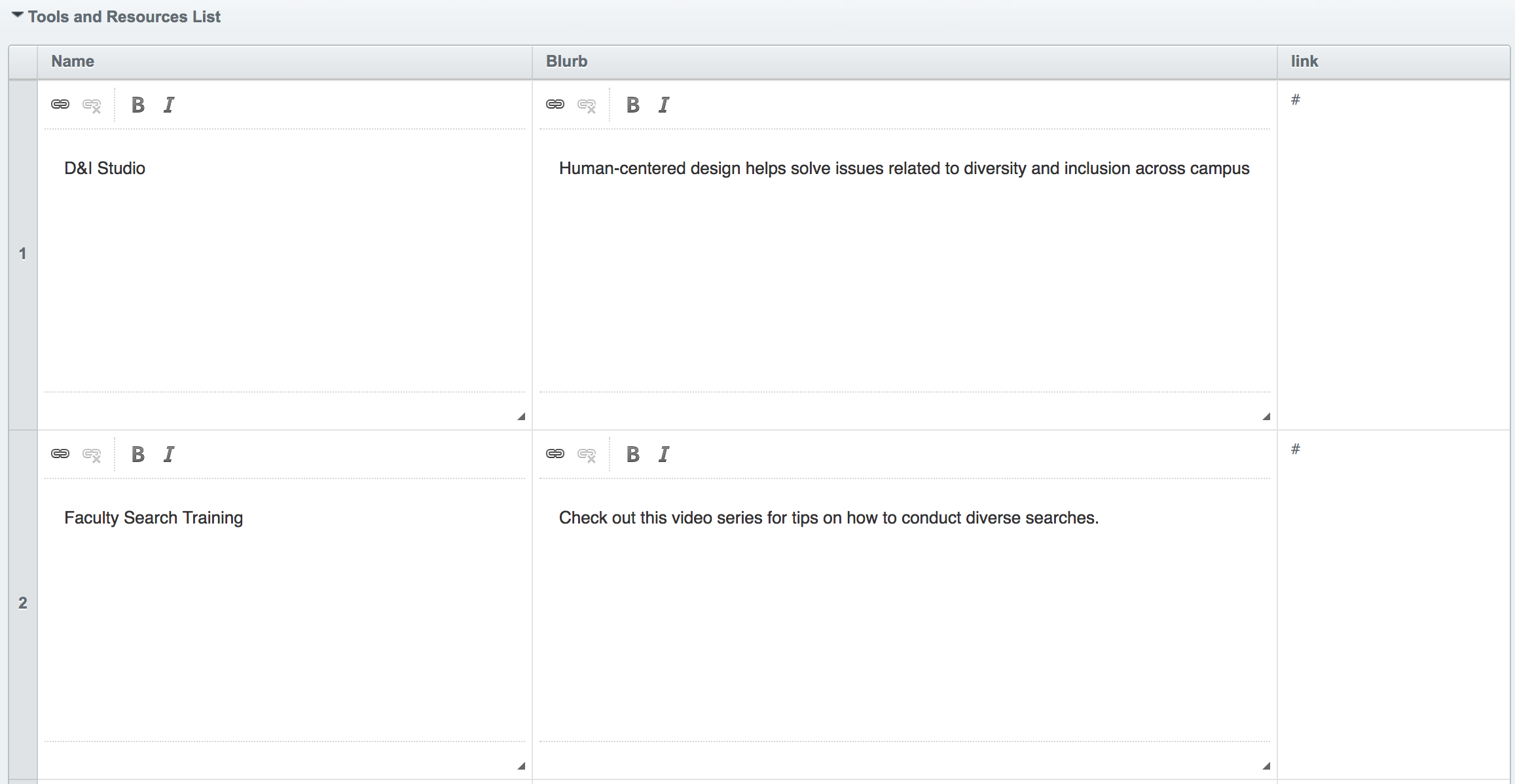
Next is your tools and resources list. This appears below the box containing the headline and intro blurb text and to the right of the headline image. Here you insert a name, which will be larger text, blurb text, and then a link. Again, the link can be for pages within the site or external pages.
You can insert up to four tools and resources.
-
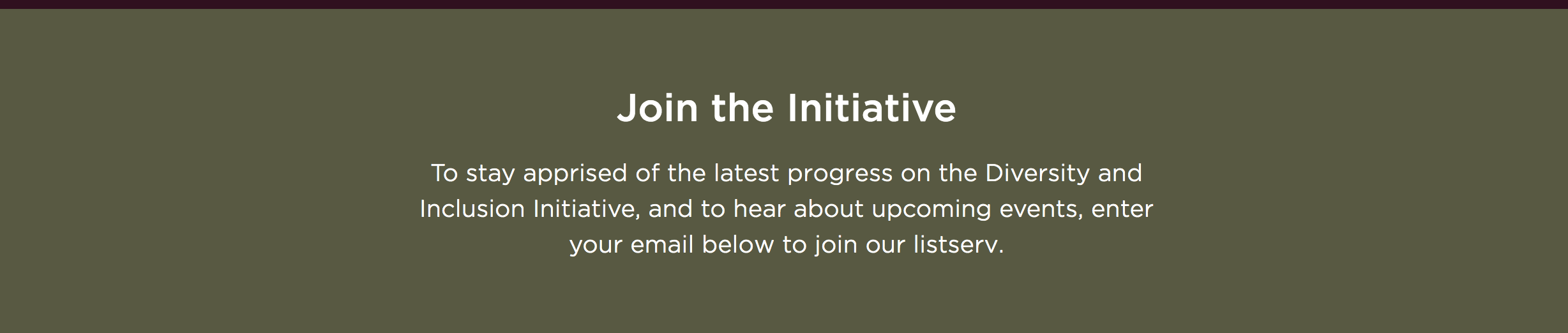
The next section is called Email signup. This is another text block. The headline will appear as larger text with the Blurb section undernearth it. The text can be bolded, italicized, or linked. The background of the block will not be editable.
-
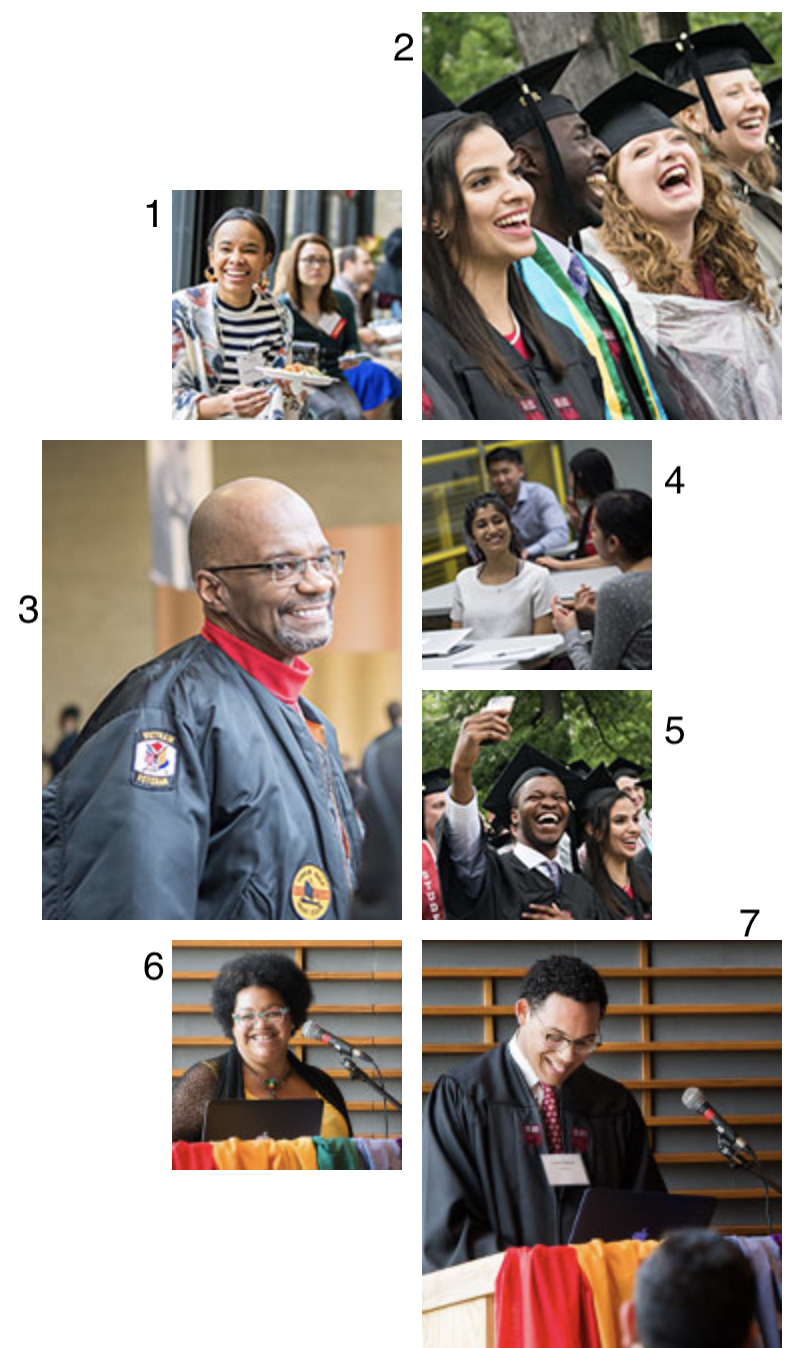
The events image collage appears to the right of the events section. Note, there are dimensions for each photo. The image to the right shows which number corresponds to which placement.
-
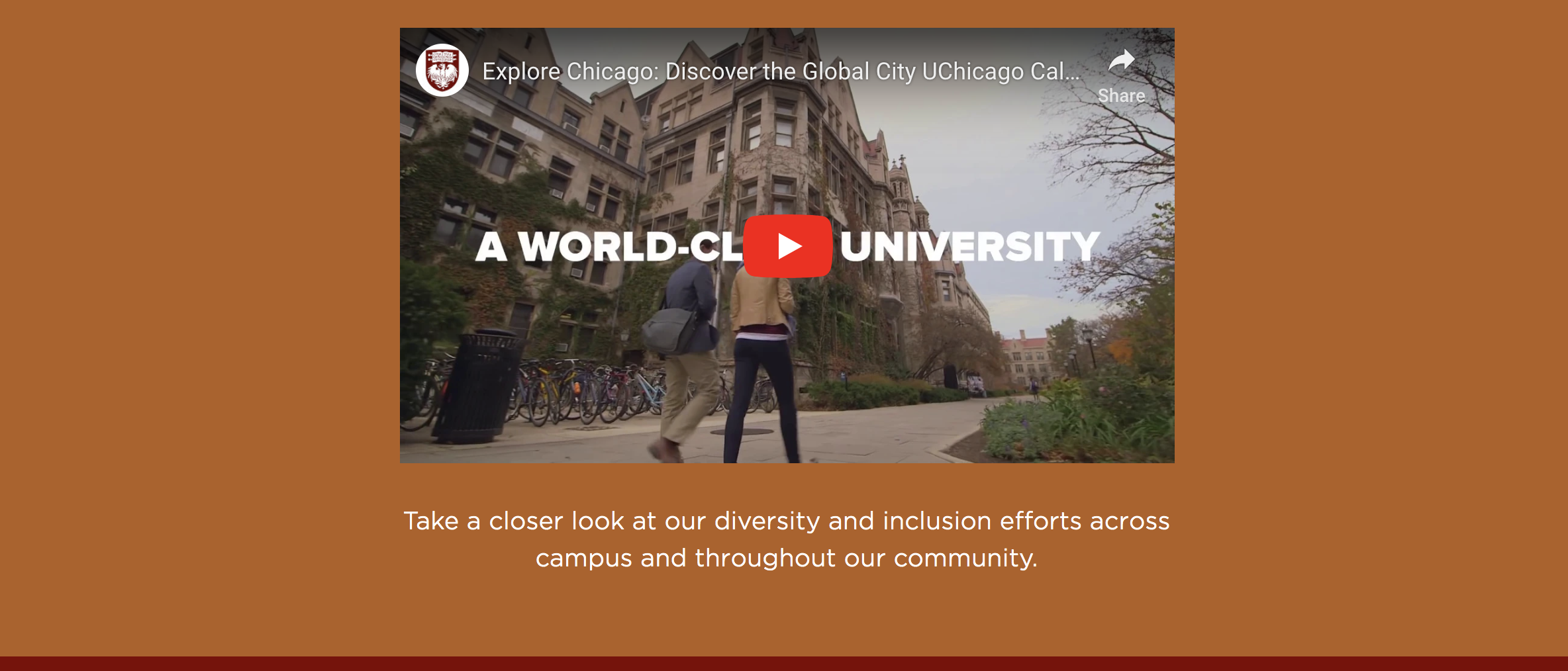
The final section for homepage editing is the Video section. Here you insert a YouTube ID, NOT the full URL. There is link to help you find a YouTube ID if needed. There is then a section for the video caption. This will be displayed undernearth the video as shown in the image. The background for this section is uneditable.
-
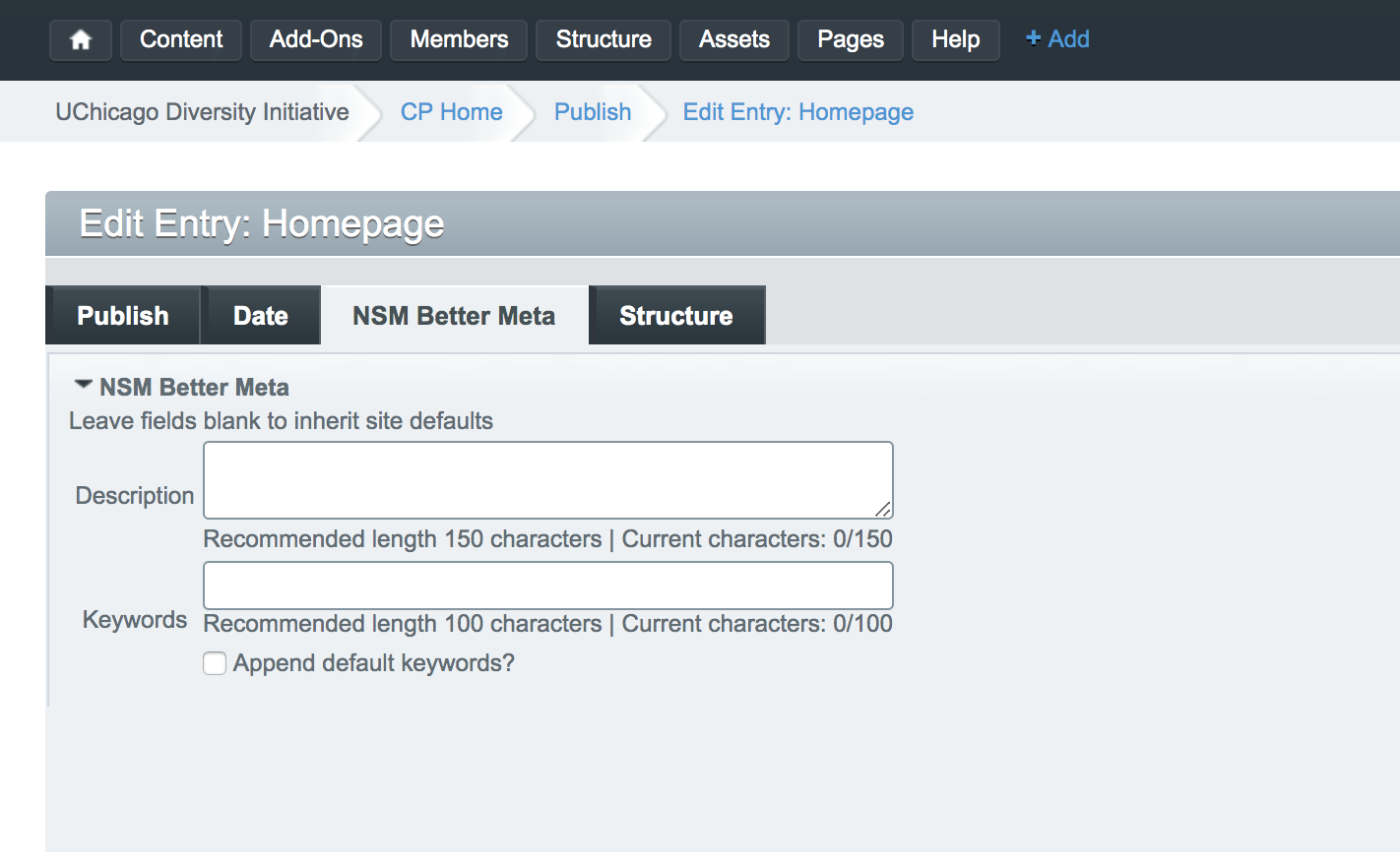
The other tab you may want to use is the NSM Better Meta tab located at the top of the Edit Entry: Homepage page. There is default metadata for your site but here you can insert your own descriptions and keywords for SEO purposes.
-
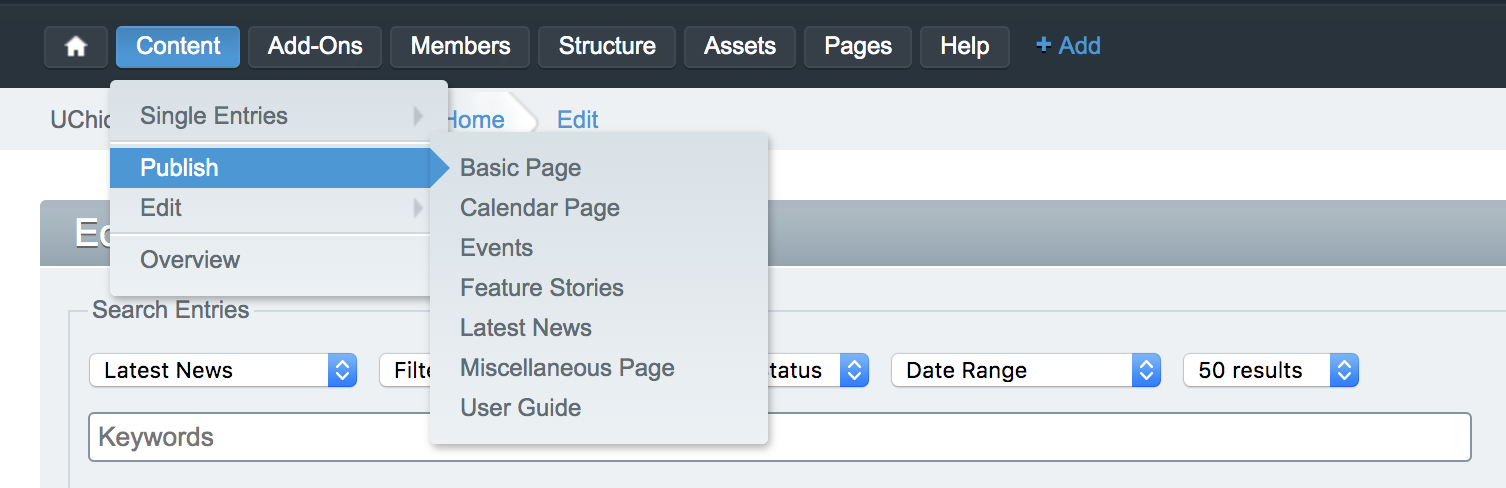
News entries appear both on the Homepage and on the /news page. The Homepage only displays previews for one featured news story and two of the most recent non-featured stories, while the /news page displays an entire archive. To create or edit a news entry, go to the "Content" section of the top bar, and hover over "Publish" and then click "Latest News" to create a new story. To edit a story, go to the "Content" section of the top bar, and hover over "Edit" and then click "Latest News".
-
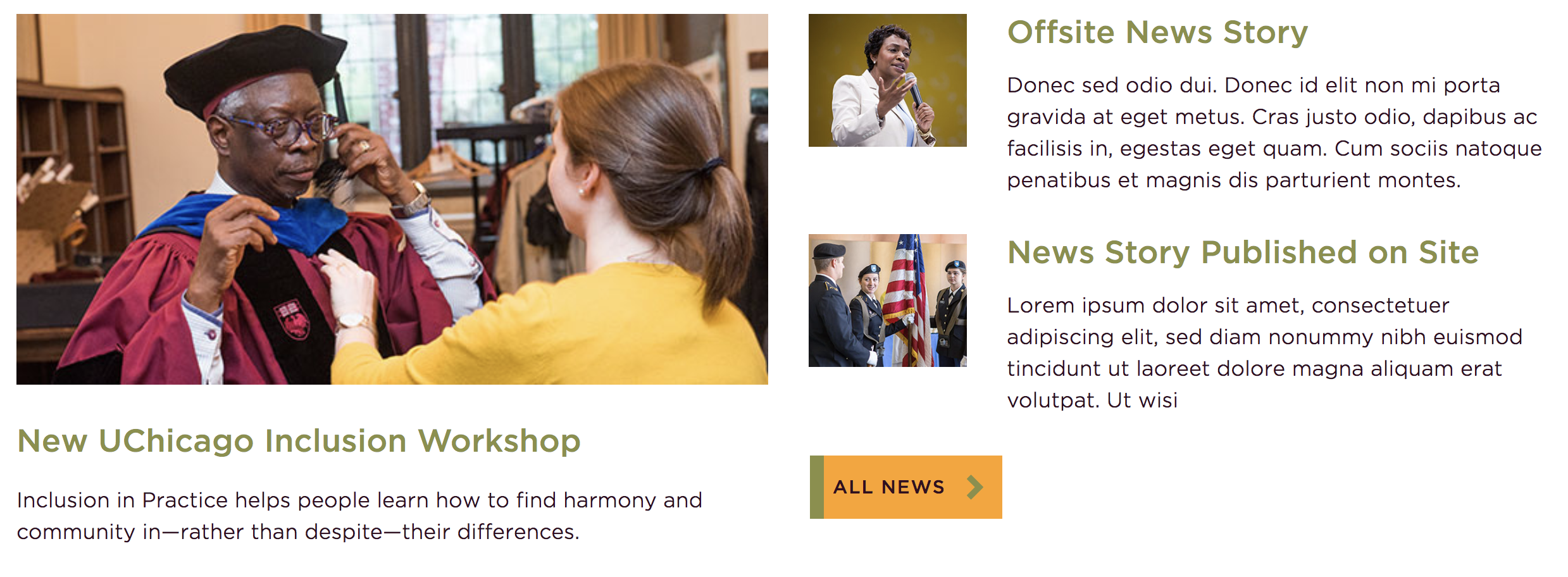
When you edit or create a story you will first choose a status, title, external URL if necessary, and an entry date.
The options for the status are open, featured, and closed. Open will be used for most of the news stories. Choose featured to have your story display as the large story under the news section on the homepage. Whichever news story has a status of Featured and is the most recent will auto populate here. The image shows the homepage news section. The large story to the left has a "Featured" status. A closed status will not show that news story on the site at all.
-

The title is a required field. The external URL should only be used if your news story is on a different site and you're wanting to link to it. The entry date will automatically be filled in with the current date and time of creation, but this can be changed if you wish.
-
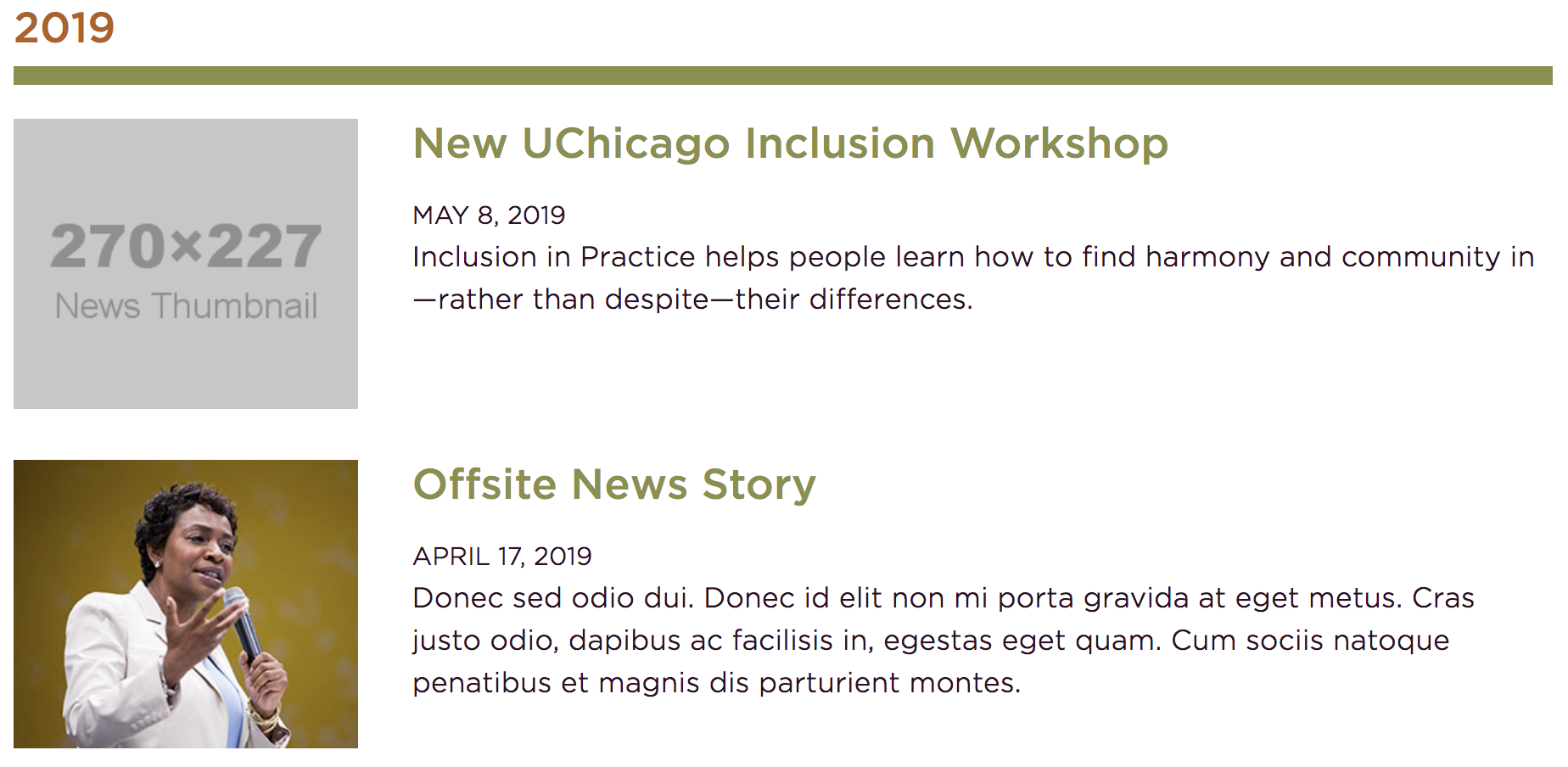
Next you will choose a thumbnail, featured image, and blurb. The thumbnail will appear next to the story in the list of news articles under the /news page on your site. The thumbnail will also appear if the story is being shown as a non-featured story on the homepage. The featured image should be chosen if you wish for this story to be a featured story. This is the image that will appear on the homepage. The blurb will appear on the homepage, if the story is on the homepage, and in the archive of news stories on the /news page.
The image shows the news archive with thumbnails, the title, and blurbs being shown.
-
For an offsite story, you only need to fill in the thumbnail, blurb, and external link fields.
-
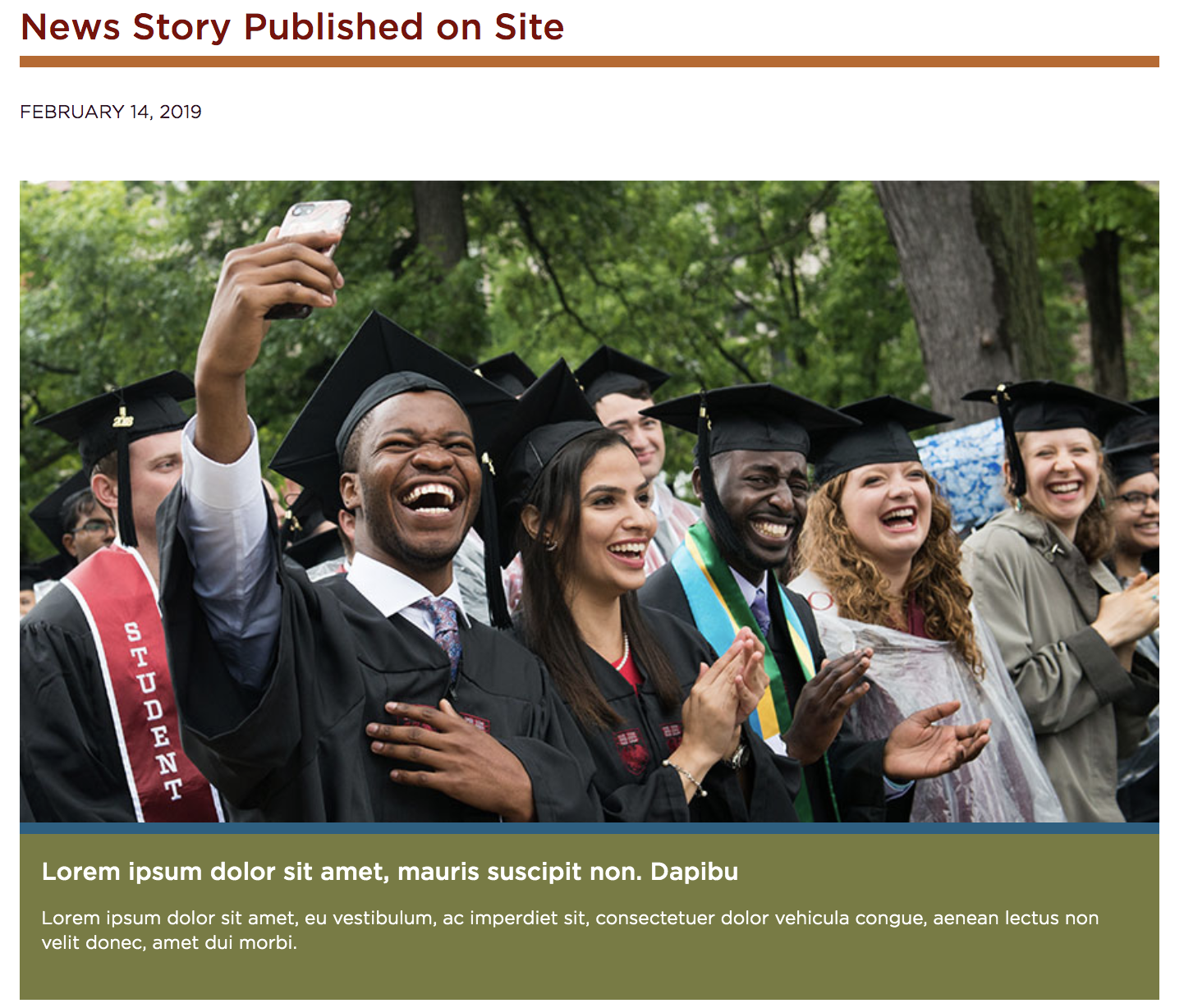
The hero image section will display at the top of the news story with a large image, a heading, and a caption as shown in the image. Multiple images and text can be chosen and a slider will be created. The background color behind the text can be changed.
-
Next are sections that are also used on the basic interior pages. You can insert text, pull quotes with a background color, media (images and Youtube videos), accordion sections, and content to appear on the sidebar of the story including text and images.
More information on these sections an be found on the basic interior page section of this user guide.
-
The basic text at the top of the /news page can be edited by navigating to the structure tree of all pages and then clicking News.
-
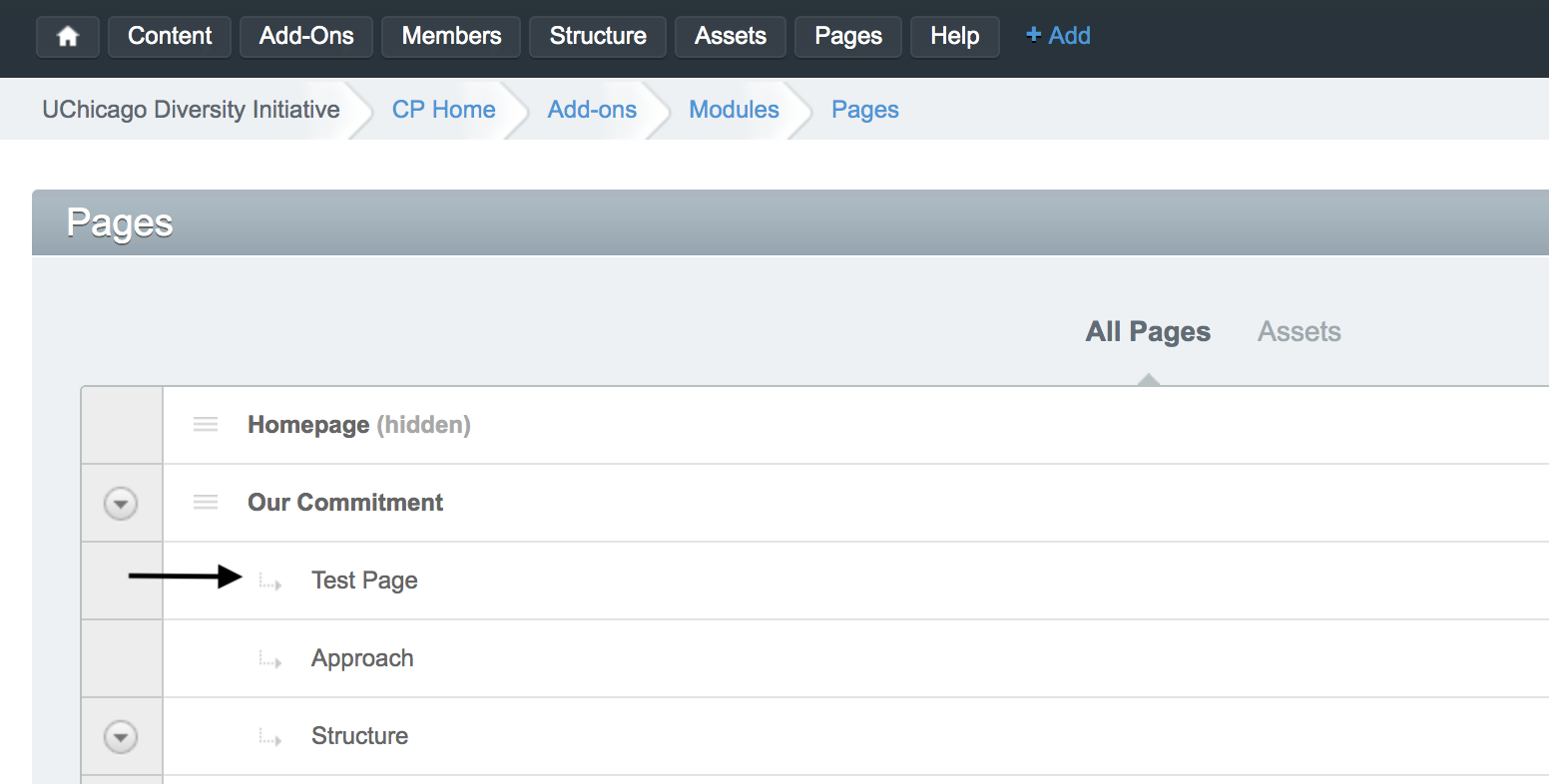
This will walk you through editing any basic interior page. The test page under the structure tree shows all of your options for content on any basic interior page. The same approach will be used to edit any interior page on your site.
-

First is the hero image section. This section allows for large images and text. The image will display at the top and a box containing the heading and caption will display below it. If more than one entry is placed, there will be a slideshow of the entries.
You can add up to six entries.
-
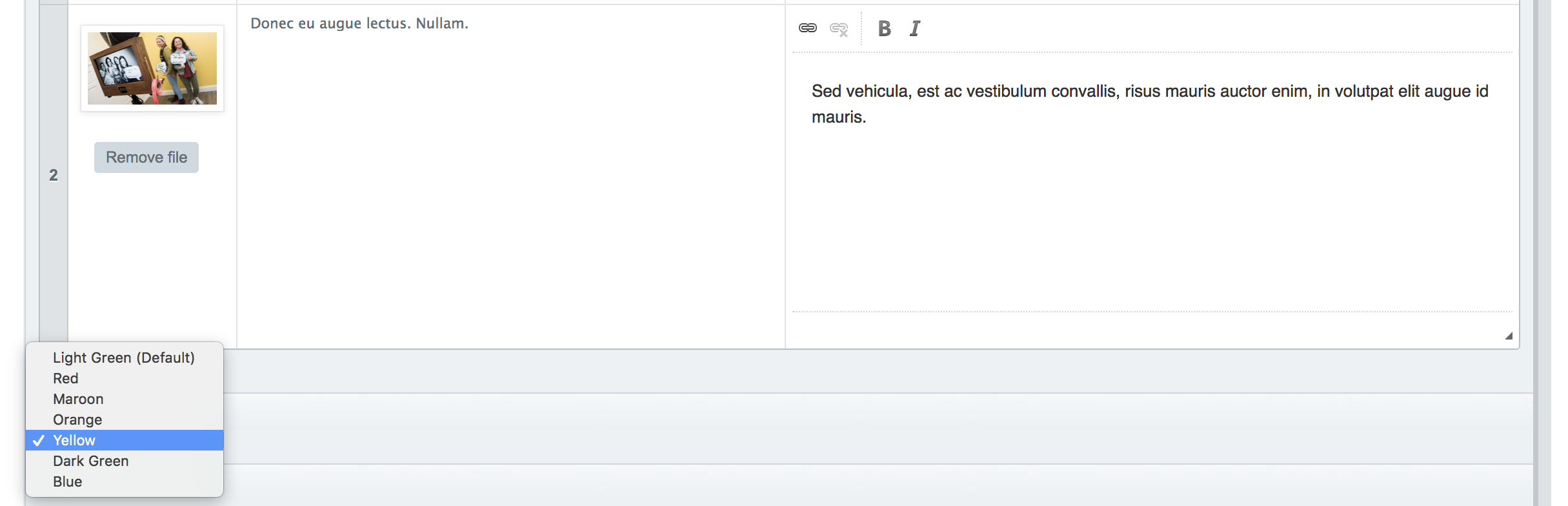
Below the list of hero images entries there is a drop down called Hero Image color. This will change the background of the text box as seen in the image above. Many of the sections included on this test page will have the option to change the background color. They will all appear as a dropdown below the area for the section content. If the Color dropdown is not there, this means there is no background color in that section to change, or there is no option to change the background color that is there.
-
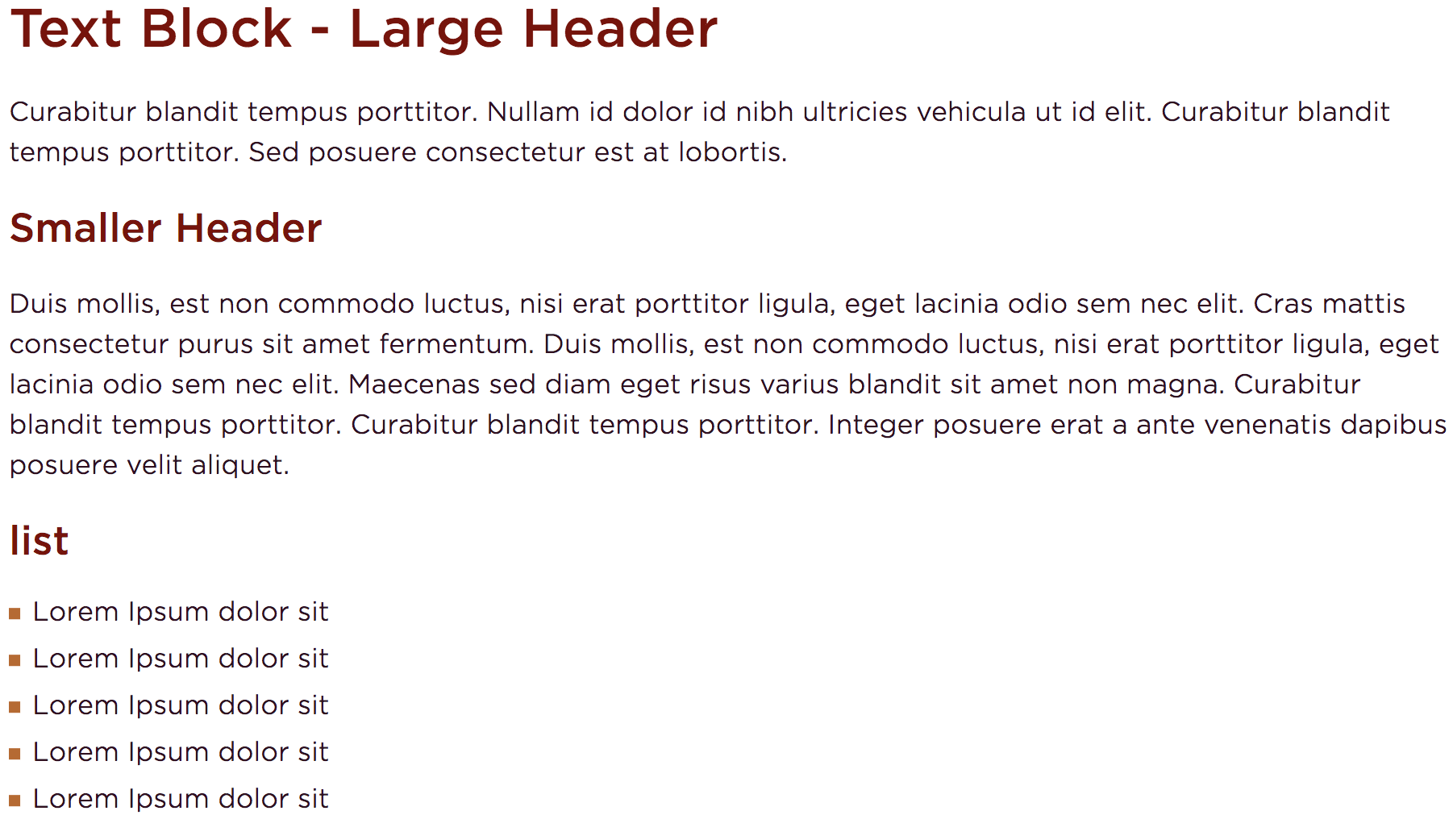
Next is a text content block. You can insert headers of different sizes, paragraph text, lists, links, and symbols. The basic formatting options are along the top bar of the textbox. The image shows how headers and lists would be displayed.
-
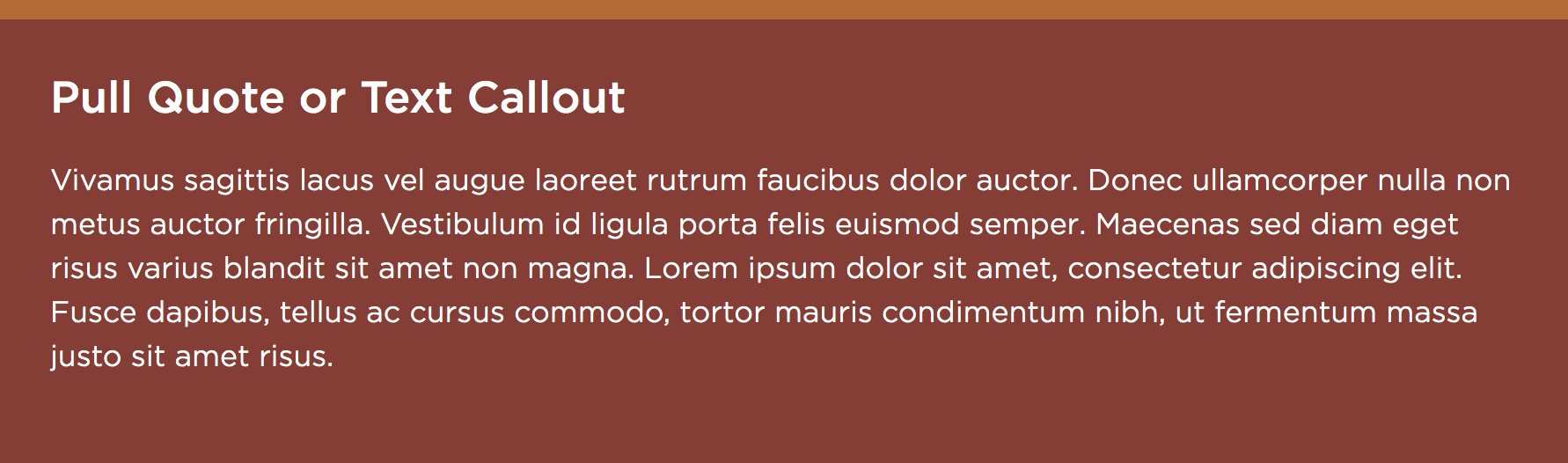
Next is a pullout quote section. Again this is a basic text box. The image shows how it is displayed. There is a dropdown option to change the background color below the section.
-
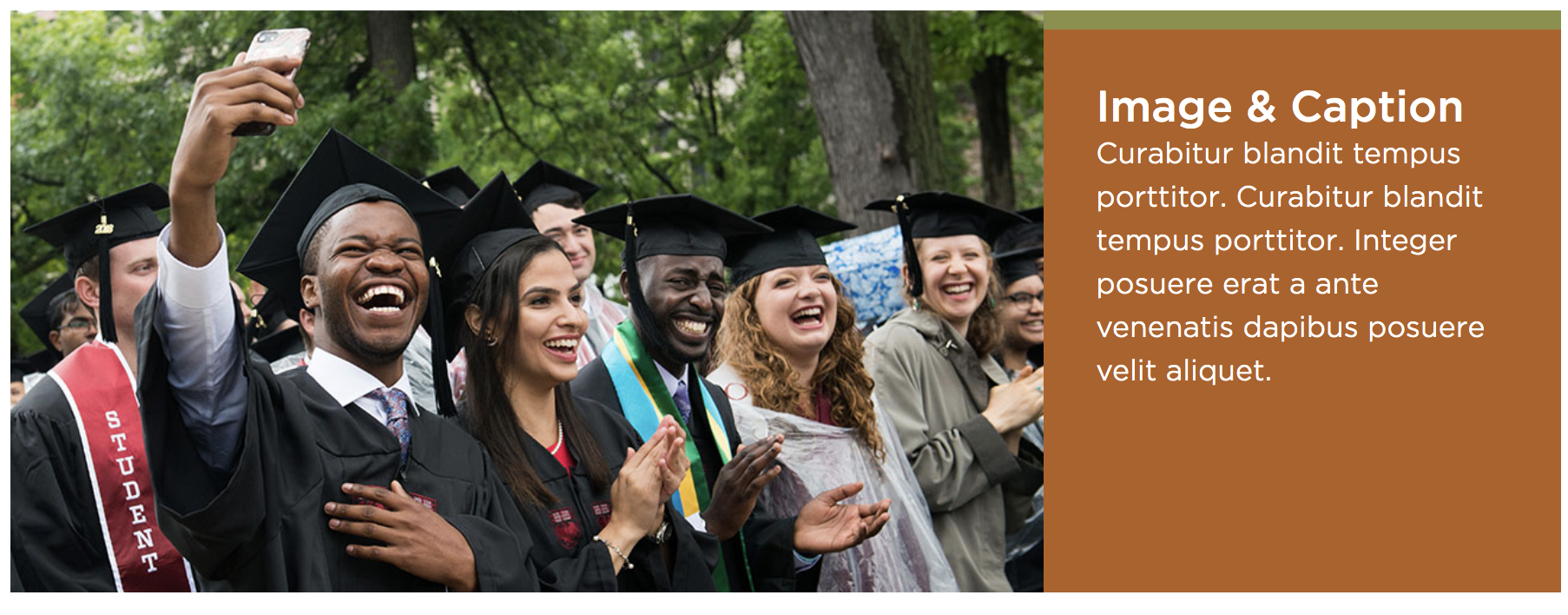
Below another basic text section is a Media section. Here you can insert a combination of photos and videos that will be stacked on top of each other. To insert an image click add file. To insert a video paste the YouTube ID, NOT the full URL. There is a link to help you find a YouTube URL if needed.
Next there are places to insert a headline and caption. This is basic text that can be made a link if you wish. The full-width option will make your image or video span the length of the page and put the headline and caption below it. If you do not use the full-width feature you can choose the left or right option to decide which side the box containing the headline and caption will be. So the image will be on the opposite side of whichever option you choose here. The color changes the background color of the textbox containing the headline and caption.
This image shows a picture, non-full width, with "Right" turned on.
-
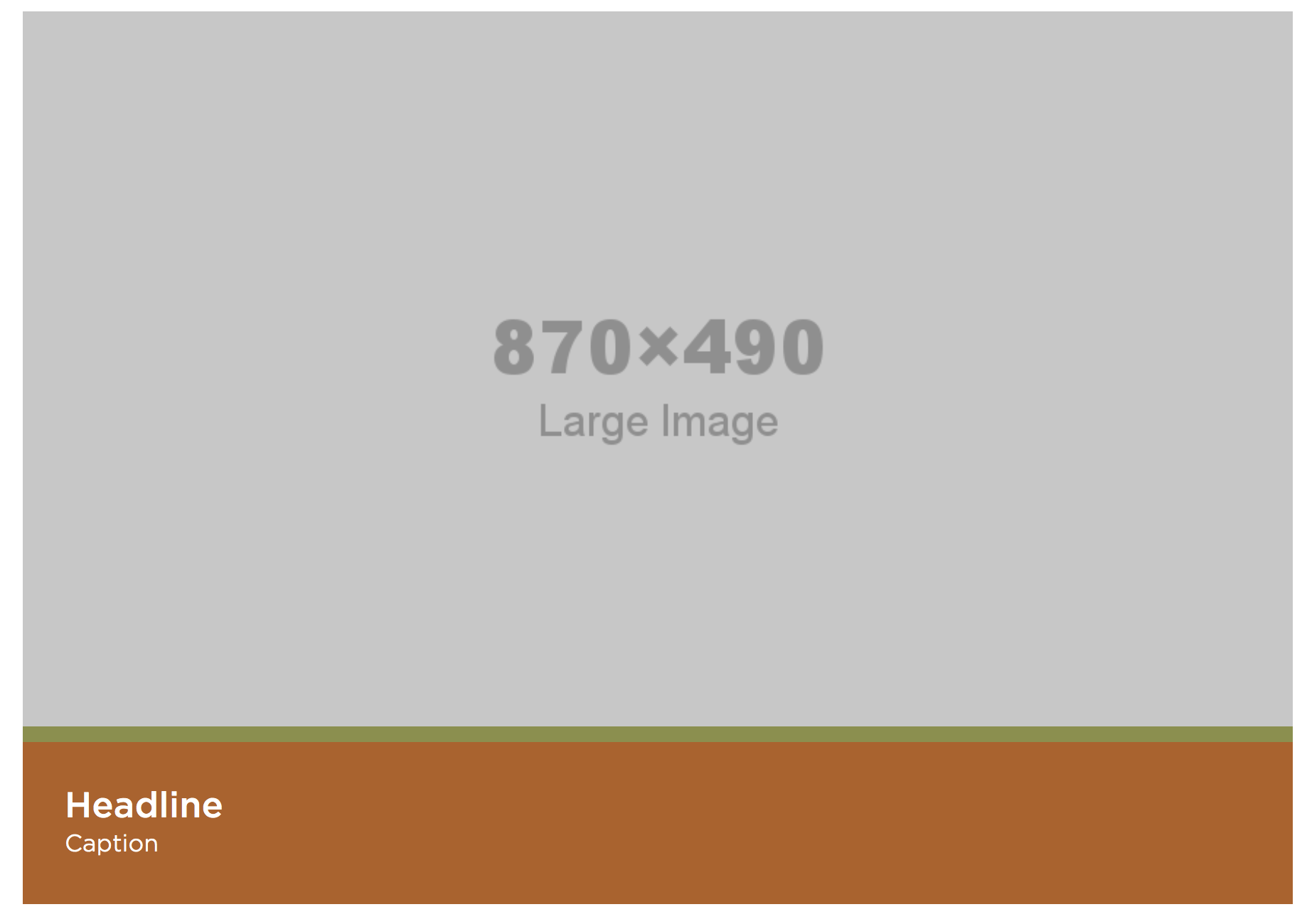
This is what a full-width image looks like with a headline and caption.
-
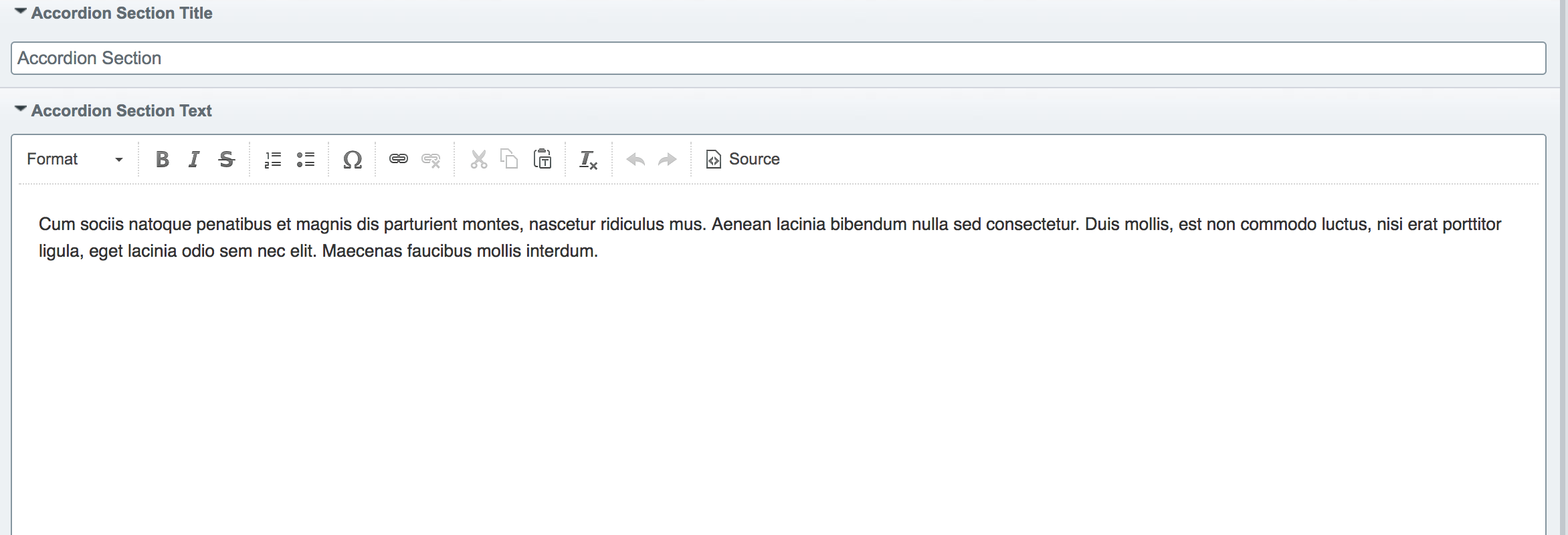
Below another text content section is an accordion section. The section title and section text will always appear on the page. You do not have to "open" the accordion to see this text.
-
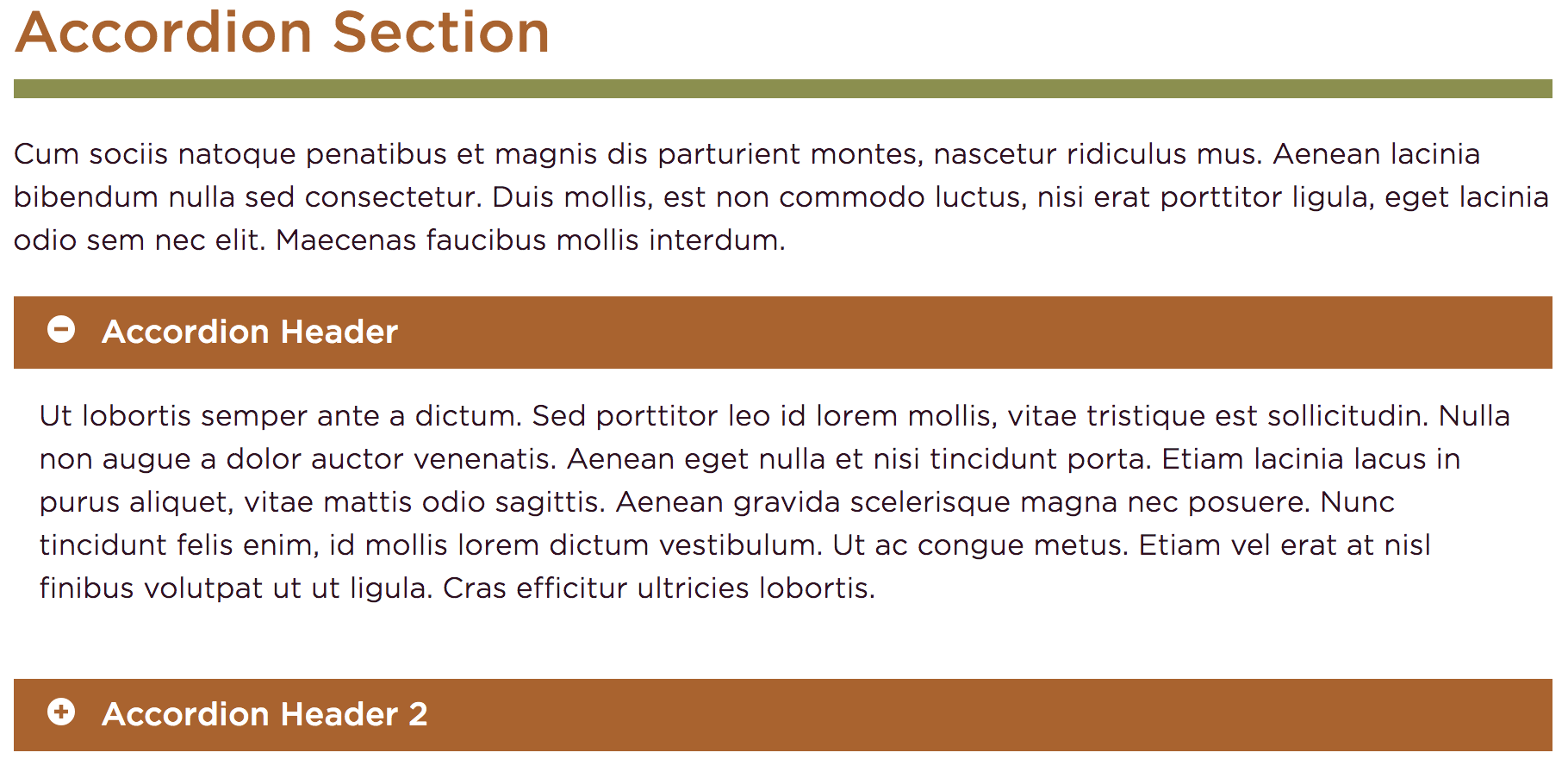
Below this is the accordion content section. The heading is what will display when the accordion section is closed. When you click on the heading area the text in the Content section will appear. There is a dropdown option below this section to choose the color of the box that surrounds the Accordion Content Header.
This image shows the Section title, Section text, and two accordion content rows, one open and one closed.
-
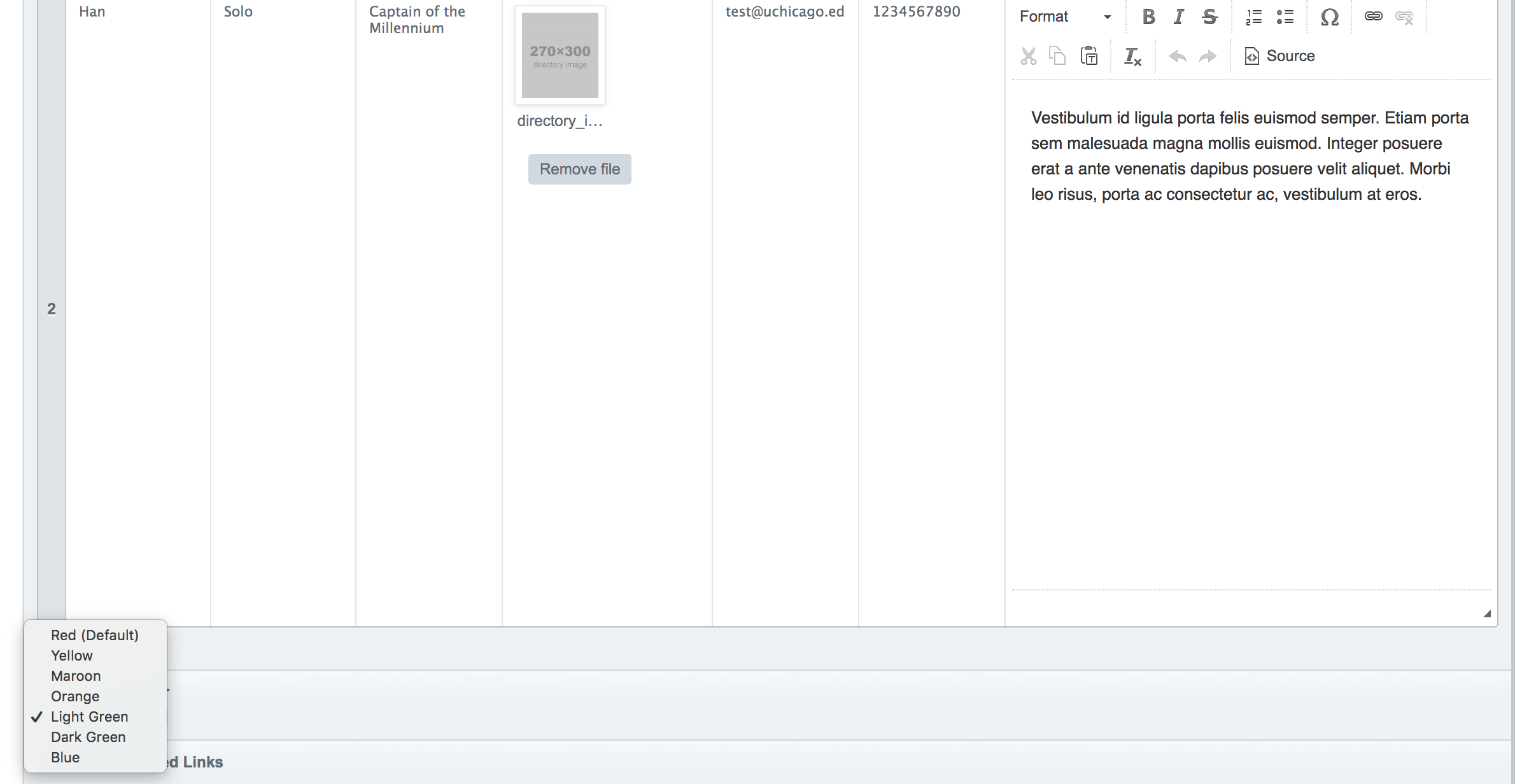
Scrolling down you'll find a directory section. Using this you can create a person bio. The fields first, last, and title are required. There are options to insert an image, email, phone, and bio.
The directory color will change the Name, email, and phone entries to that color.
-
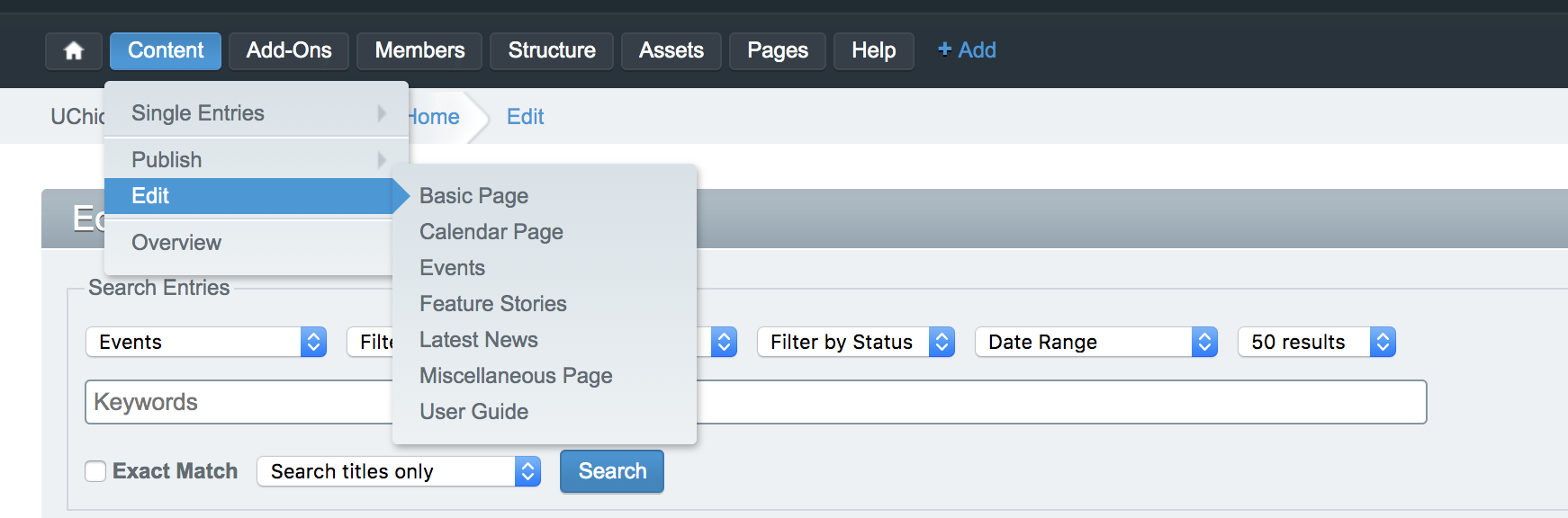
To create or edit and event, go to Content, publish or edit, and then click Events.
-
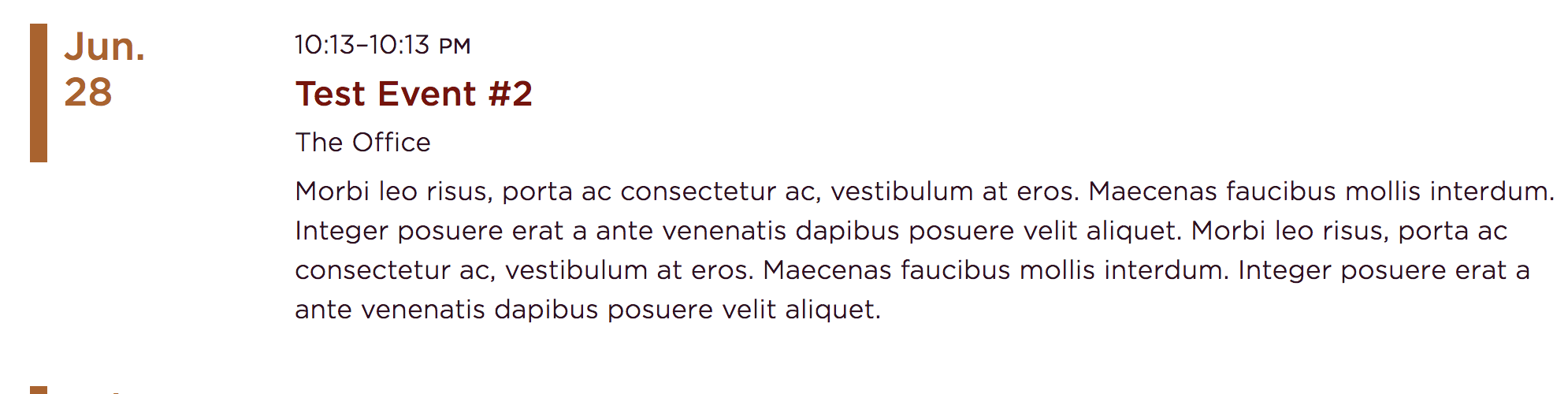
You can set the status to public, closed, or private. Then you will choose the title, event times if known, or have the option to set the time to TBA or to suppress the end time.
The location name and address can be inserted along with a summary. The summary will appear on the page /events.
-
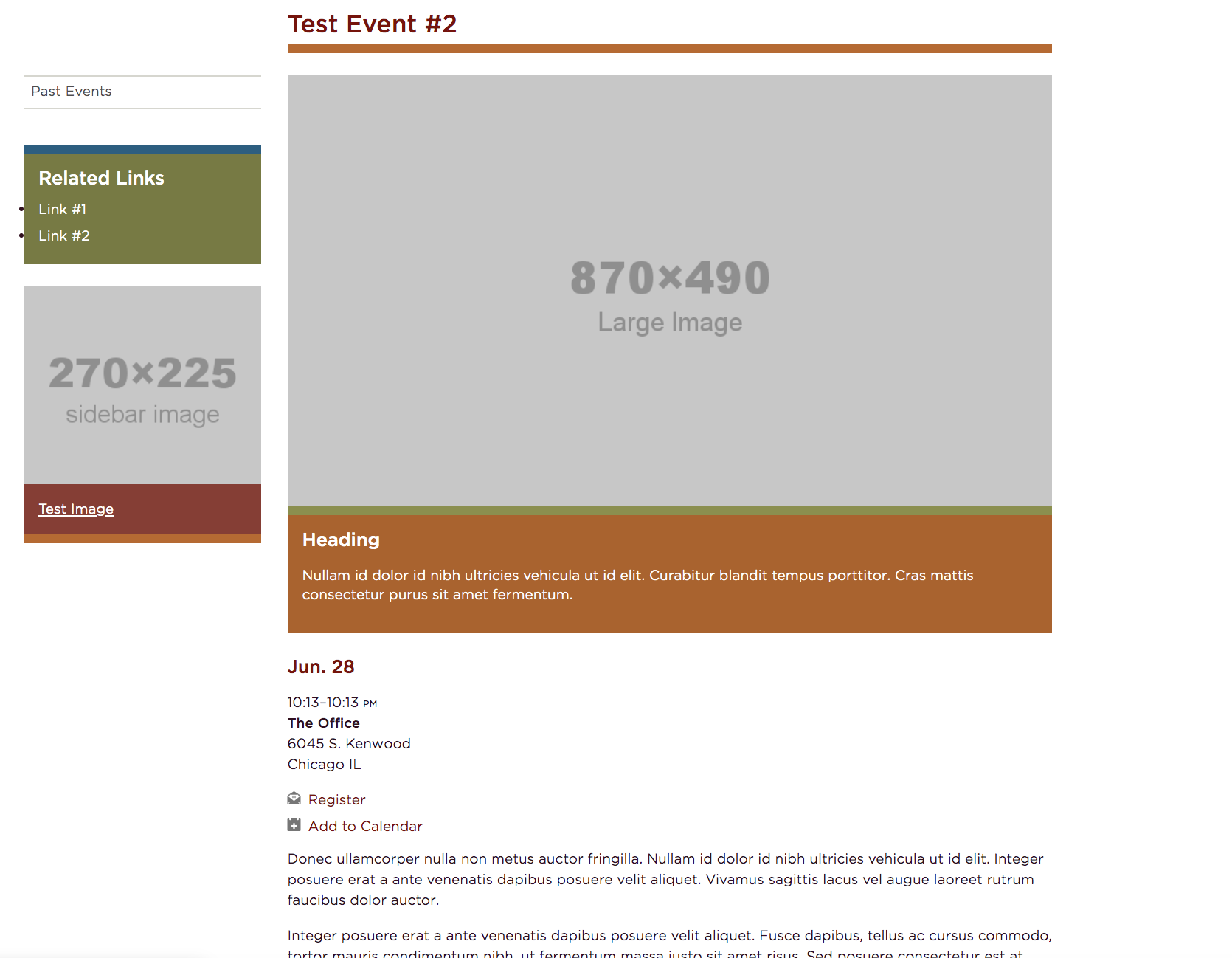
Large image(s) can be inserted and will appear at the top of the page of that event. Multiple can be chosen and a slideshow will be created. The full description is required and will appear on that specific event's page. There are also places to insert sidebar content and a registration form link if needed. This image shows a large image, the event information, sidebar links and a sidebar image.
-
The events section on the homepage will automatically pull events and show the time, title, location, and date.
-
The basic text on the top of the /events page can be changed by navigating to the structure tree of all pages and then clicking events.
-
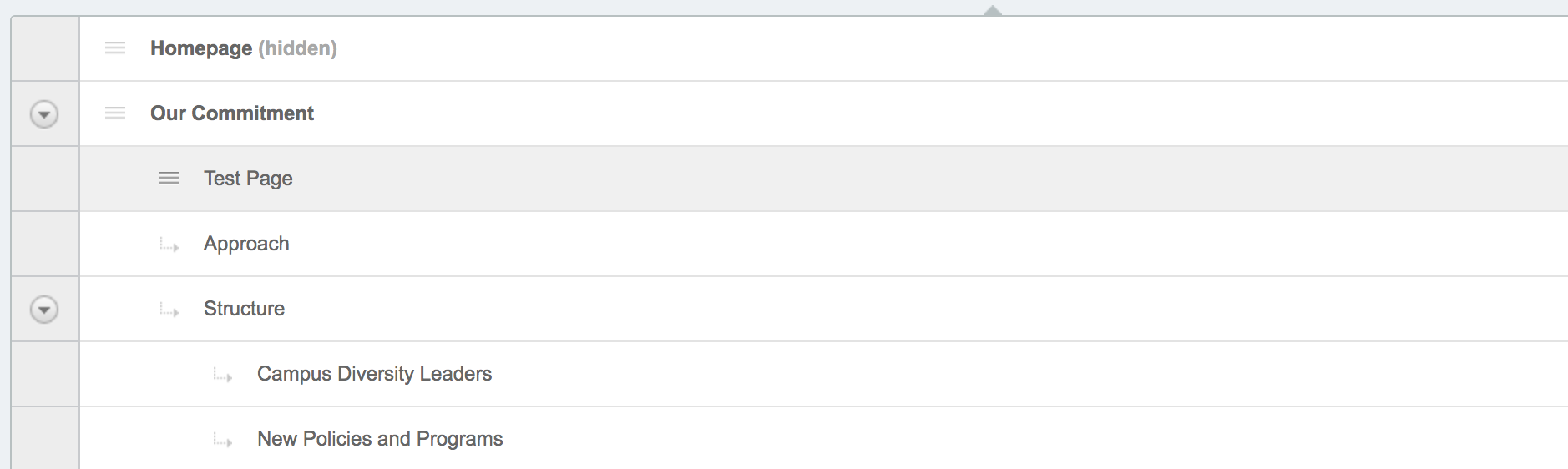
To change the ordering of pages in the navigation or to change a parent/child page relationship, we recommend going to the tree structure view and dragging and dropping. Placing your mouse to the left of the page title will display a black up and down arrow that will allow you to move the page.
-
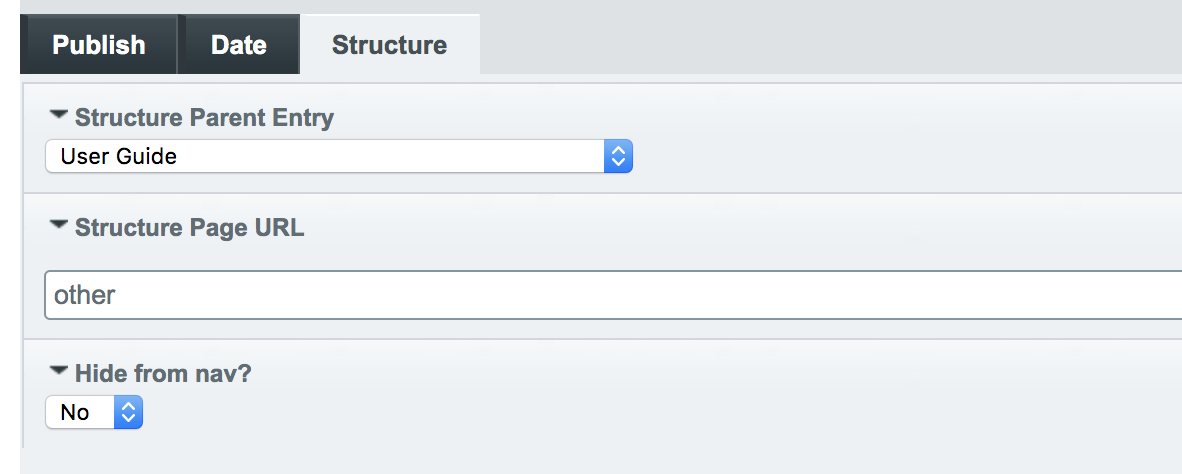
Parent/child page relationships can also be changed under the "Structure tab" which shows when you click any page in the tree structure. Here you can also turn on "Hide from nav". If turned on, this page will be accessible but hidden from any navigation on the live site and from the navigation assets view.
-
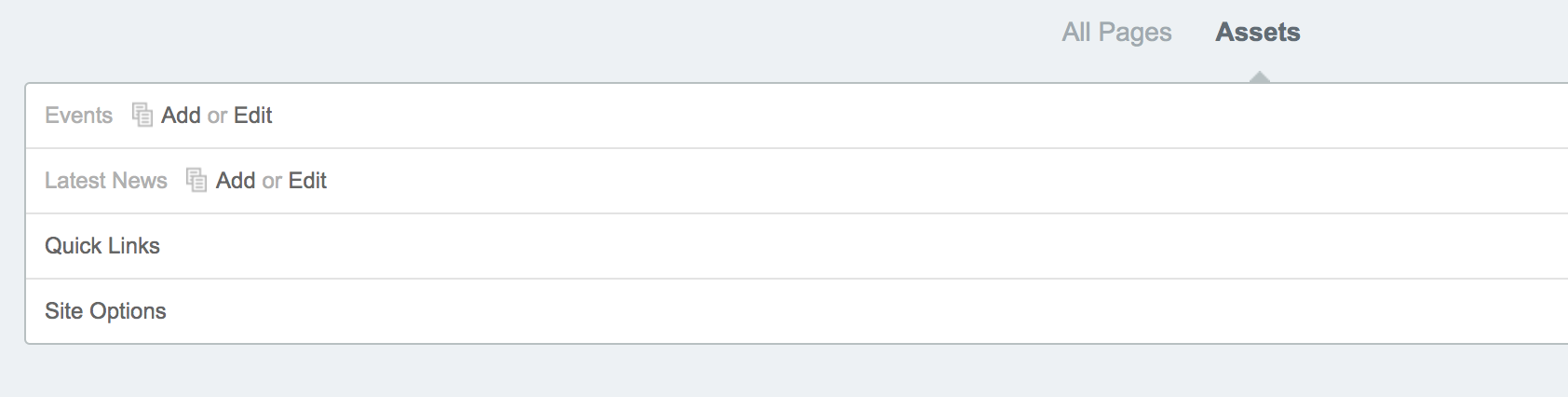
By navigating to assets as in the picture here, you can change a few more things by clicking "Site options".
If you have your own Google Analytics Account ID number you can insert it here. You can also change the footer content and footer links here.
-
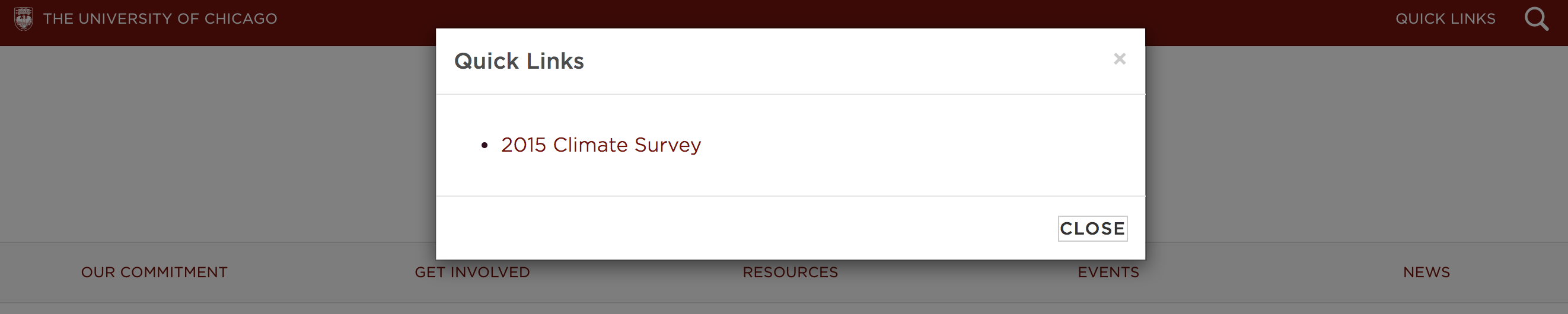
On the assets tab you also have a "Quick Links" section. To make quick links display make sure the status is set to open. Quick links will show in a bar at the very top of your site next to the search bar. The words "Quick Links" will display. If you click on those words, a list of links will appear as a pop-up. These links can be internal or external to your site.